- what we will do
- set up Python virtual environment
- Python virtual environments solve a similar problem as node_modules do in Node/npm
- write Python script with SQLAlchemy that fetches JSON data from an API
- save this data in a table in a SQLite database in the same directory
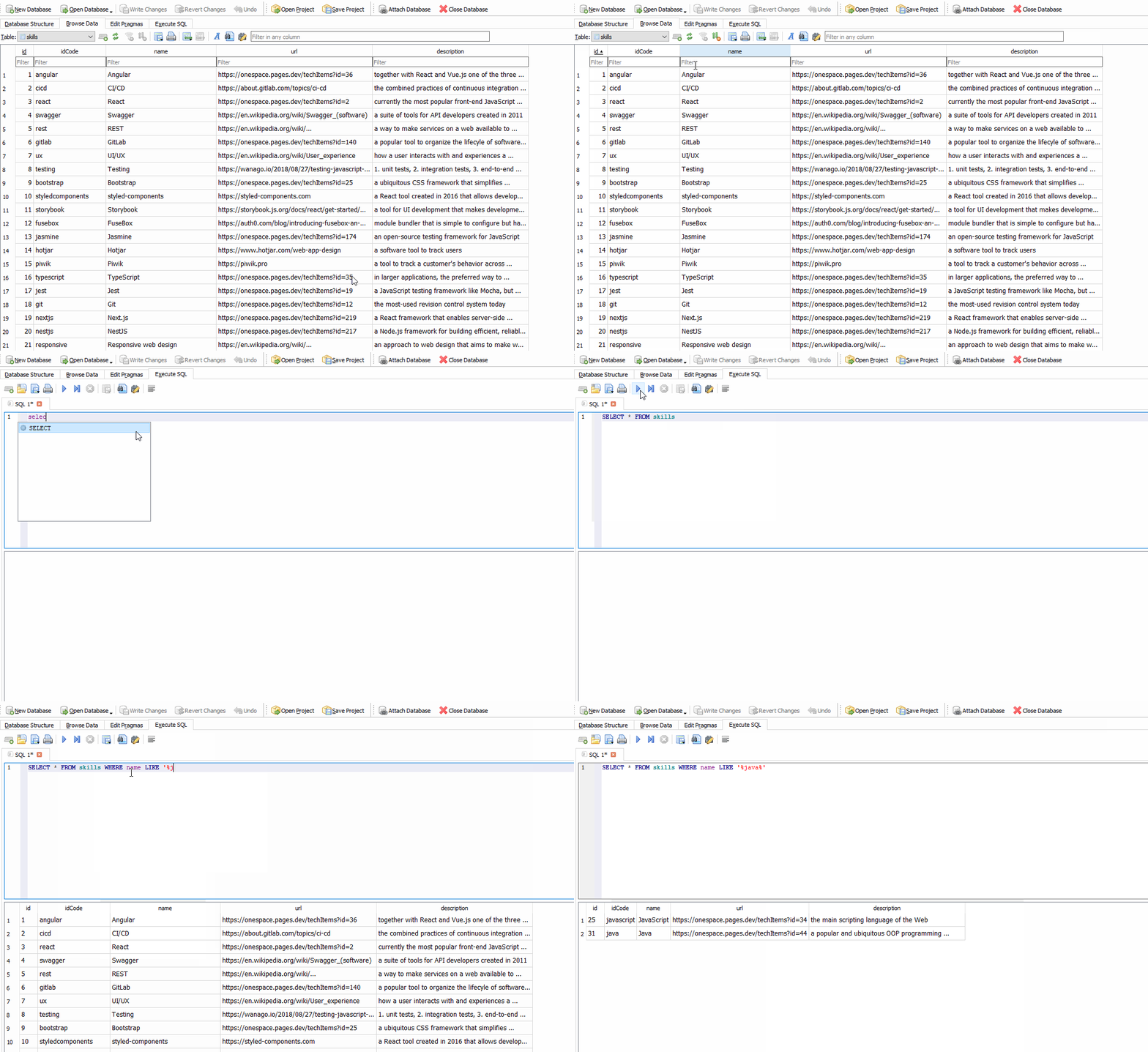
- use the DB Browser for SQLite management tool to view the data
- set up Python virtual environment
- assumptions
- you don't know much Python
- you've never created a Python environment before
- you have Python installed
- you are on Mac/Linux/Windows
- code is here
- >>> 1. set up Python virtual environment in VSCode
- create directory
- go to your projects directory
mkdir python-save-sqlite
- open VSCode
code python-save-sqlite
- create virtual envronment
python -m venv env("env" is convention)- this automatically installed pip, a kind of npm for Python
- activate virtual environment
source env/Scripts/activate
- list all packages
pip list
- install package we will need later to fetch data from APIs
pip install requestspip list- see that requests and all its dependencies installed now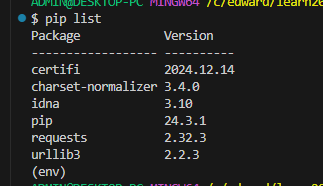
- as a test, get out of your virtual environment
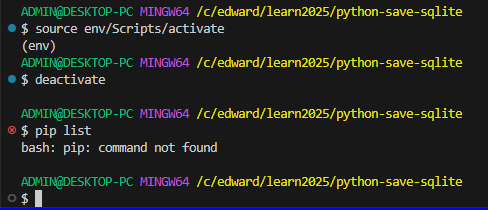
deactivate- you see no more (env)pip list- see that requests is not installed outside your environment- you may have some modules installed globally
- but e.g. I don't even have pip installed outside my environment
- get back in your virtual environment
source env/Scripts/activatepip list- see that requests is still installed in your environment
- create directory
- >>> 2. test Python
- main.py
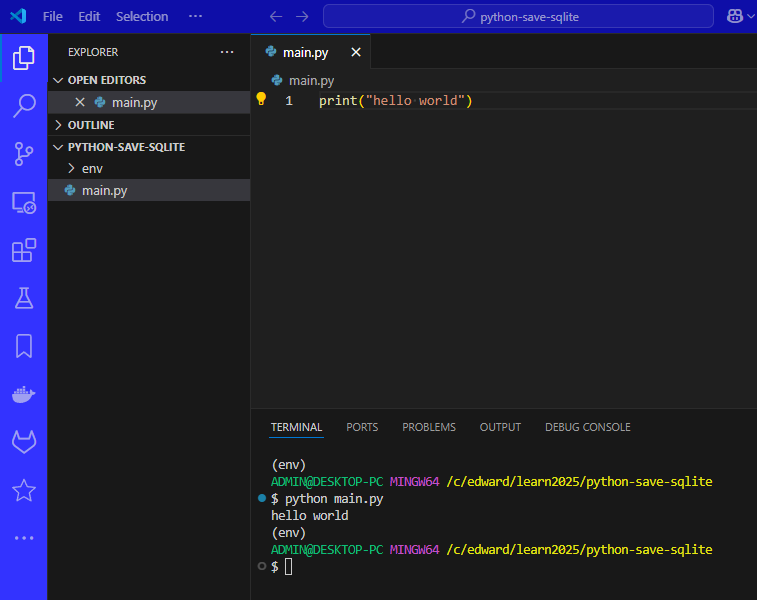
- print("hello world")
- run it
- main.py
- >>> 3. fetch data from external API and display
- so that we can fetch data, if you didn't do it above, install the requests module now
pip install requests
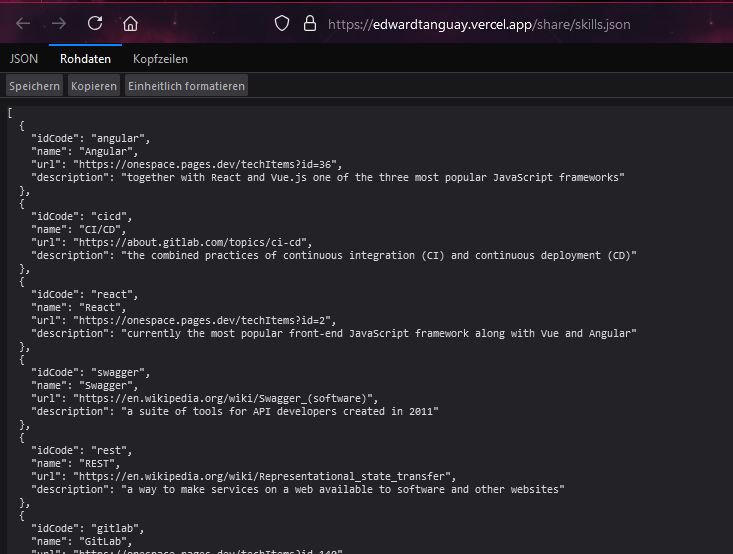
- we are going to fetch this JSON array:
- main.py
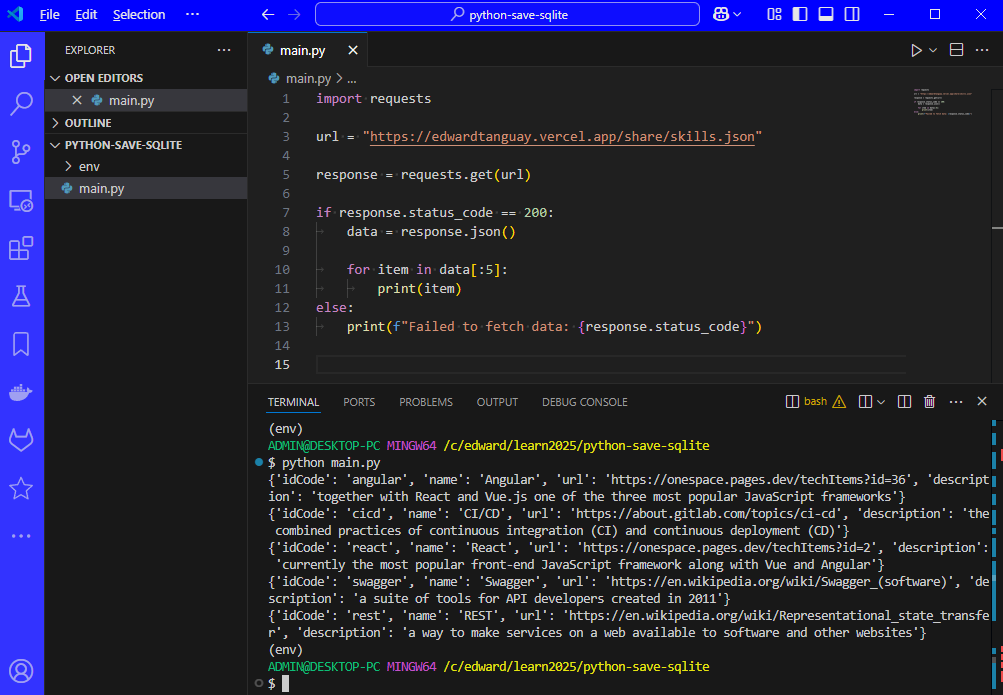
- import requestsurl = "https://edwardtanguay.vercel.app/share/skills.json"response = requests.get(url)if response.status_code == 200:data = response.json()for item in data[:5]:print(item)else:print(f"Failed to fetch data: {response.status_code}")
- run the script and you will see that it fetches the data and displays the first 5
- so that we can fetch data, if you didn't do it above, install the requests module now
- >>> 4. save the data from the API in an SQLite database
- we will need SQLAlchemy
pip install sqlalchemy
- main.py
- import requestsfrom sqlalchemy import create_engine, Column, Integer, Stringfrom sqlalchemy.ext.declarative import declarative_basefrom sqlalchemy.orm import sessionmakerengine = create_engine("sqlite:///db.sqlite")Base = declarative_base()url = "https://edwardtanguay.vercel.app/share/skills.json"response = requests.get(url)class Skill(Base):__tablename__ = "skills"id = Column(Integer, primary_key=True)idCode = Column(String)name = Column(String)url = Column(String)description = Column(String)# save to sqliteBase.metadata.create_all(engine)Session = sessionmaker(bind=engine)session = Session()if response.status_code == 200:data = response.json()for item in data:skill = Skill(idCode=item['idCode'], name=item['name'], url=item['url'], description=item['description'])session.add(skill)else:print(f"Failed to fetch data: {response.status_code}")session.commit()# display dataskills = session.query(Skill).all()for skill in skills:print(f"RECORD #{skill.id}: {skill.name}")
- execute it again
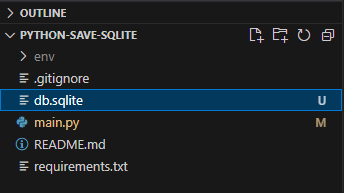
python main.py- you will see that a file db.sqlite was created
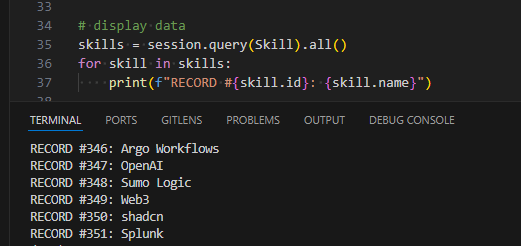
- you also see that it displays the file from the database:
- we will need SQLAlchemy
- >>> 5. view the SQLite database in DB Browser for SQLite
- if you don't have it, install: ../sqlitebrowser.orghttps://sqlitebrowser.org
- I've installed this on Windows, Linux and Mac, works well
- it's a full database management tool for SQLite databases
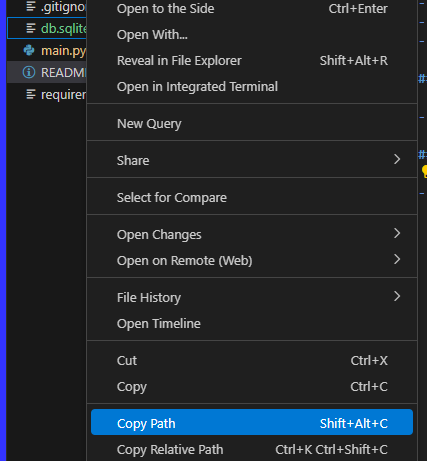
- copy the path to your file
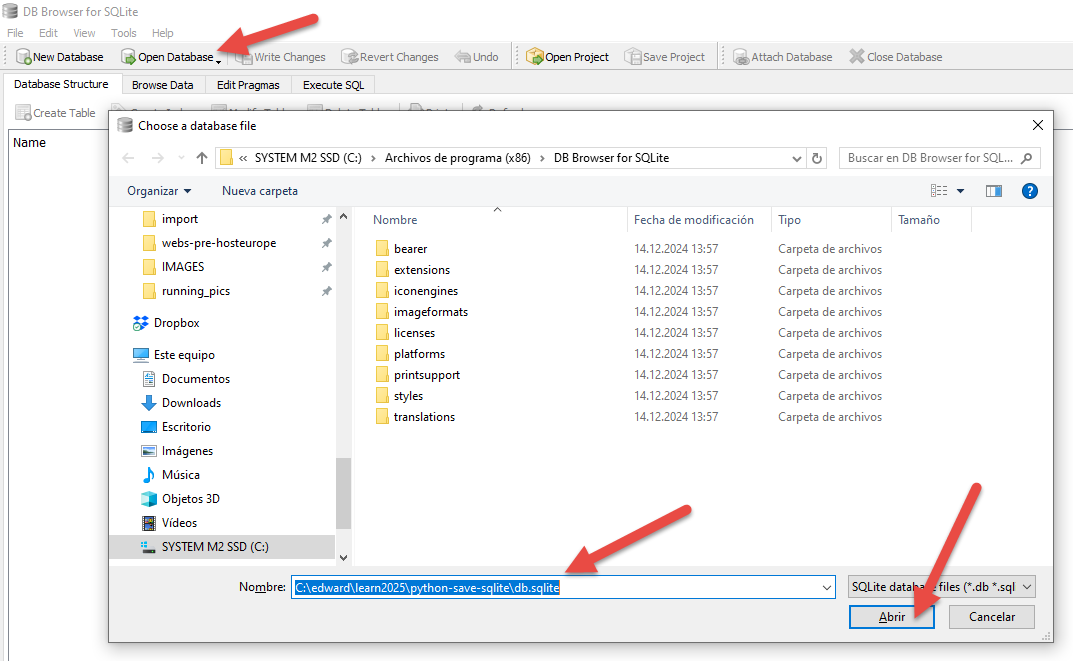
- in DB Browser, click Open Database, paste path to sqlite file and click Open
- right-click on skills and click Browse Table
- you now have your data in a managed SQL database: