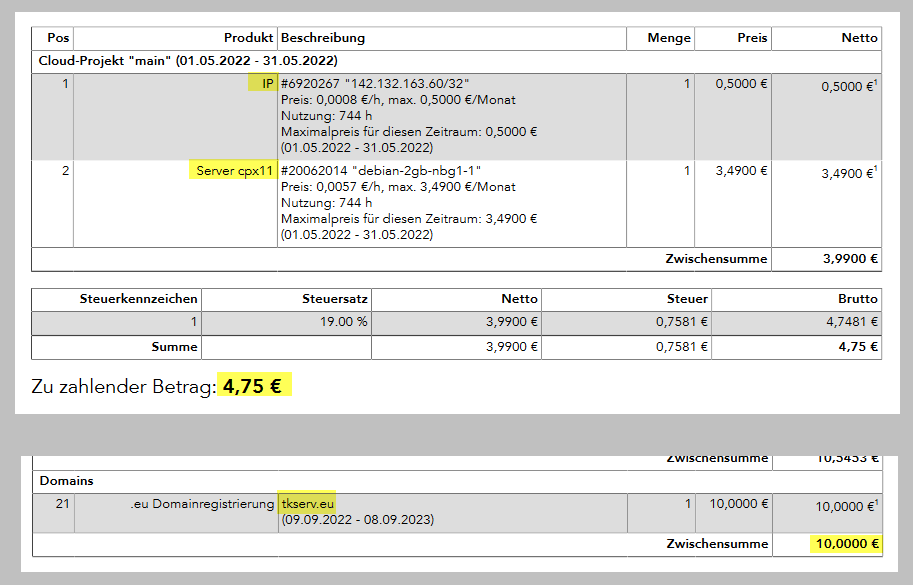
the cost per month will be less than 6 euros per month for
cloud machine + IP address = 4.75 euros
domain name (e.g. tkserv.eu) - 10 euros per year, ca. 1 euro per month
here are cost examples from my monthly statements:
you can pay via PayPal, Visa, SEPA, Überweisung
you pay for machines by the hour, so you can create a machine and keep it on for one day, and on your monthly bill you will have a charge for e.g. less than a euro for the machine and the IP address it used
technology used
Debian Linux
Debian is similar to Ubuntu yet Debian is typically used as a Server while Ubuntu for a desktop machine
you can also install Ubuntu, Fedora, CentOS, Rocky Linux, and there is a back door trick to install (Arch Linux)
Nginx
web server to server your pages
Nginx is worth learning as a developer skill
you can also install Caddy which saves a step setting up HTTPS on each site
but Nginx is better if you setting up machines at Hetzner in order to improve your general Linux and web admin skills
pm2
this is a process manager which keeps your Node/Express sites running 24/7
this is the least expensive machine, you can upgrade later at any time
leave all other settings as default, e.g. we can set up a firewall later
however, do set up an SSH-Key which is secure practice and in Hetzner's case, setting up a SSH-key will ensure that you do not receive a root password via e-mail
make directory for local login, e.g. in c:/hetzner
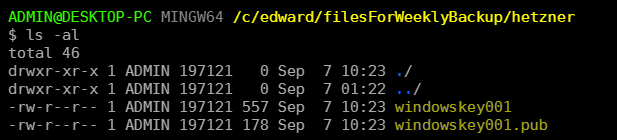
in that directory, type the command e.g. ssh-keygen -f windowskey001 -t ecdsa (windowskey001 should identify your local machine)
for passphrase, just hit ENTER
the SSH will allow you to automatically log in from your local computer
your account is still protected by password
the root login to your Hetzner machine is by default not allowed to be accessed via remote login, only from the Hetzner website console
so this is a quite secure setup for your cloud machine
this will create two files on your machine
open windowskey001.pub and copy contents
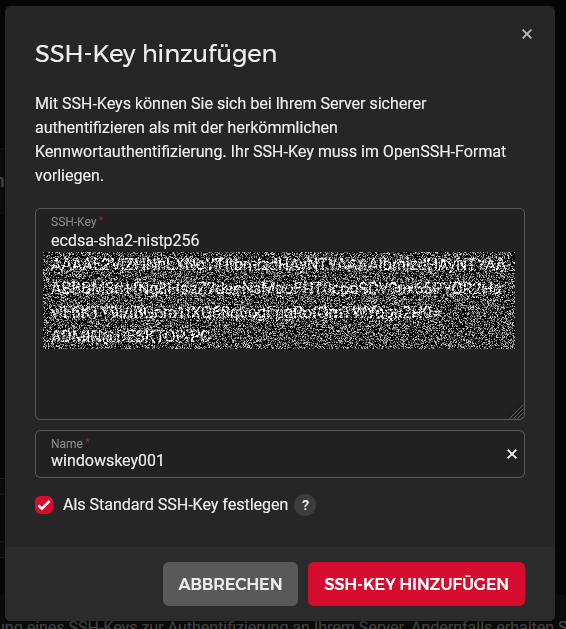
back at the Hetzner website, click the area to create a SSH-key
paste the contents of into the box, change the name to windowskey001, and click as standard (for when you create other machines), and click the button
rename the machine to e.g. debian-001
click "Kostenpflichtig erstellen"
log in as root
because we set up an SSH-key during creation of our machine, Hetzner didn't send us a root password via e-mail, which one should avoid
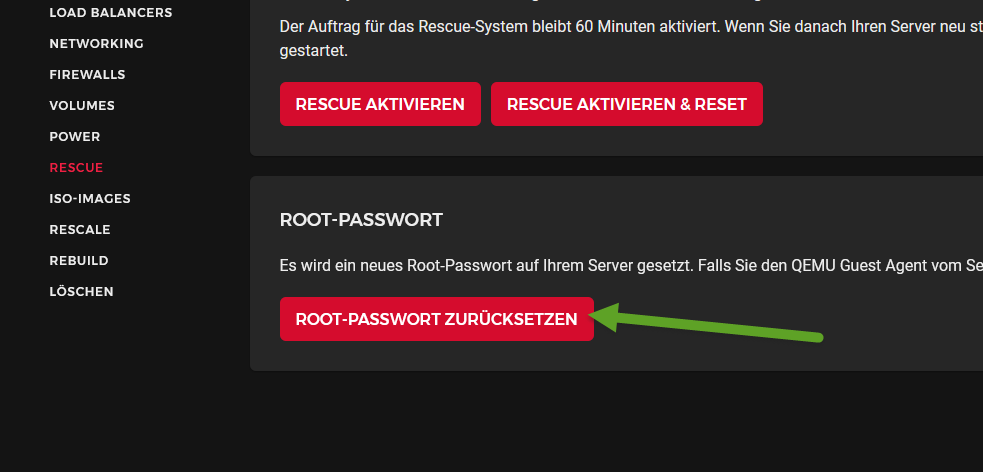
to get the root password now so we can log in as root to create our first user, we need to reset the password in order to see what it is
click on machine
[RESCUE]
click the [ROOT-PASSWORT ZURÜCKSETZEN] button
copy and save the root password in e.g. your keepass
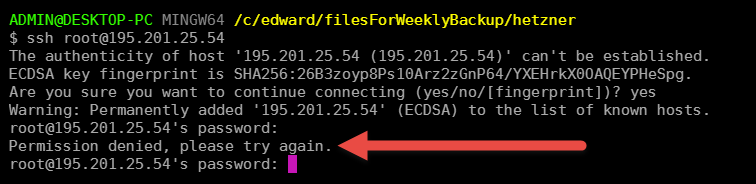
note that from your local terminal, you can try to log in as root, but as a security measure, it won't let you:
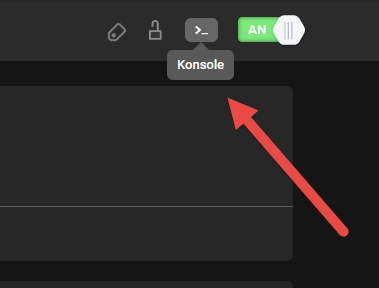
you can only log in as host via the Hetzner console
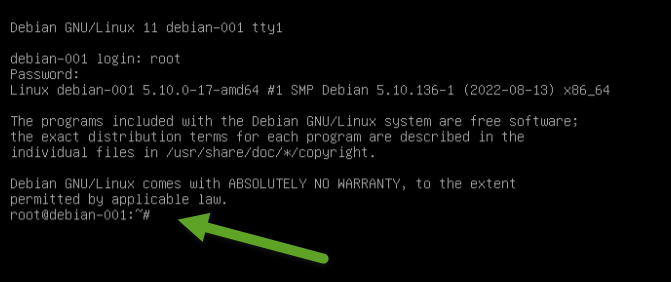
with the generated password that you saved earlier, you can log in as root
create main user
you normally don't want or need to login as root user on Linux
we need to do it now in order to create our first user which will have sudo rights
having sudo rights means the user can temporarily have root rights
so we will now create a main user which you will use to regularly access and manage your machine
as root, create a main user (e.g. your name) like this:
useradd -m edward
(-m creates a home directory)
passwd edward
usermod -aG sudo edward
(-aG sudo adds user to the group which can execute sudo commands)
exit as root with exit
test to see in the console if you can log in and out as your main user
remember, to log out, type exit
**on local machine log in via SSH **
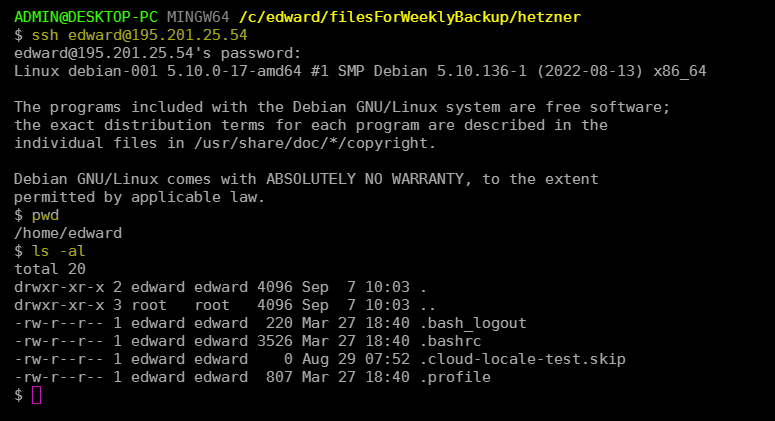
now from terminal on your local machine, log in via SSH as the user you just created
note you can already log in via password, e.g. ssh edward@195.201.25.54
(get the IP address of your machine from the Hetzner page that lists your machines)
but we want to make it easier to log in via ssh
so set up SSH for that user: ssh-copy-id -i windowskey001 edward@195.201.25.54
you can now log in with command: ssh -i windowskey001 edward@195.201.25.54:
make file called e.g. d1 (short for debian-001) with one line: ssh -i windowskey001 edward@195.201.25.54
now to log in with SSH:
go to hetzner directory in terminal
./d1
enter passphrase
note if your local machine is Linux, then
in your home directory, create .bash_aliases with this line:
alias d1='ssh -i ubuntukey001 edward@195.201.25.54'
then: source ~/.bash_aliases
now to log into your Hetzner machine, simply type: d1